
You want to use your tablet in a business environment, such as a customer satisfaction survey or as a self-service point.
Super efficient, because you let your customer or visitor enter the data themselves.
However, there is also a danger here, because how do you make sure the tablet is not abused and the user, for example, opens another application or uses the tablet's camera to take pictures when it is not necessary for the application? Fortunately, there are several solutions for this.
In this blog, we will cover two of them:
- Disable camera of the tablet
- Activate kiosk mode
Switch off tablet camera
Camera apps on tablets cannot be uninstalled, as these are native apps which are supplied by default by the manufacturer.
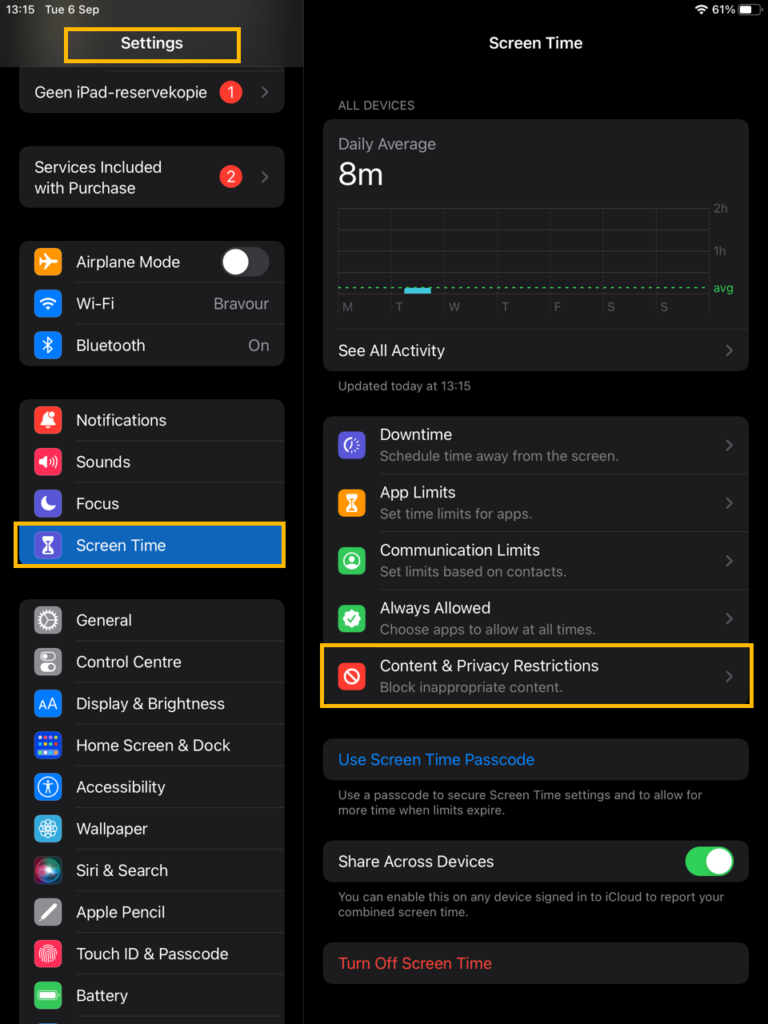
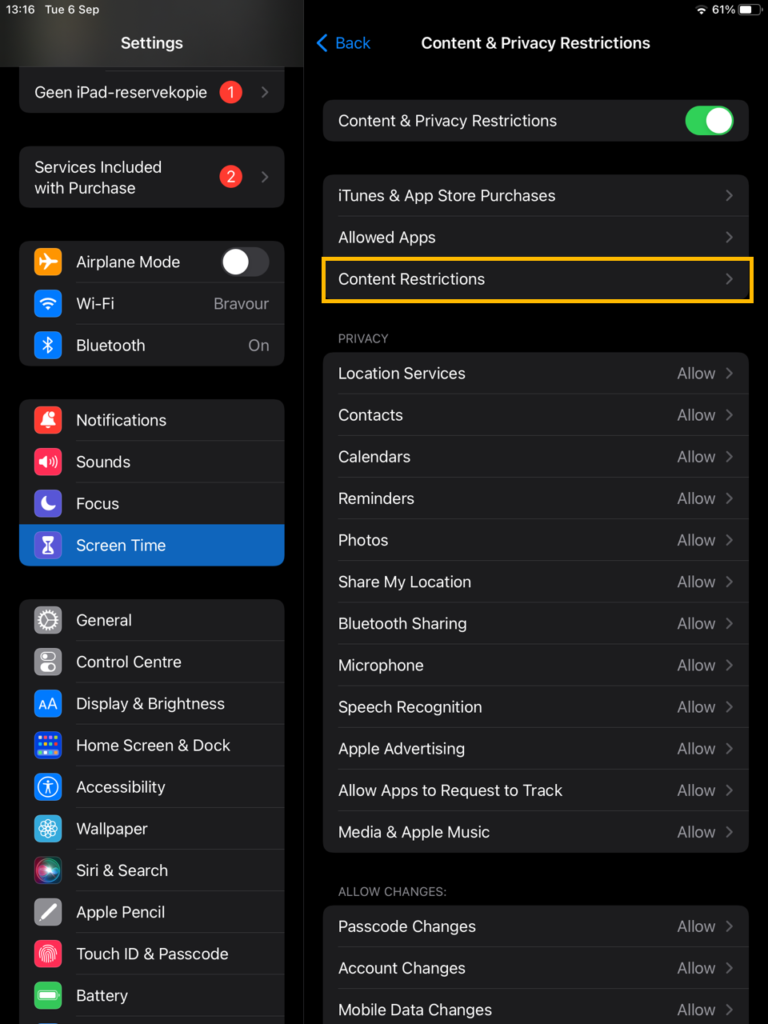
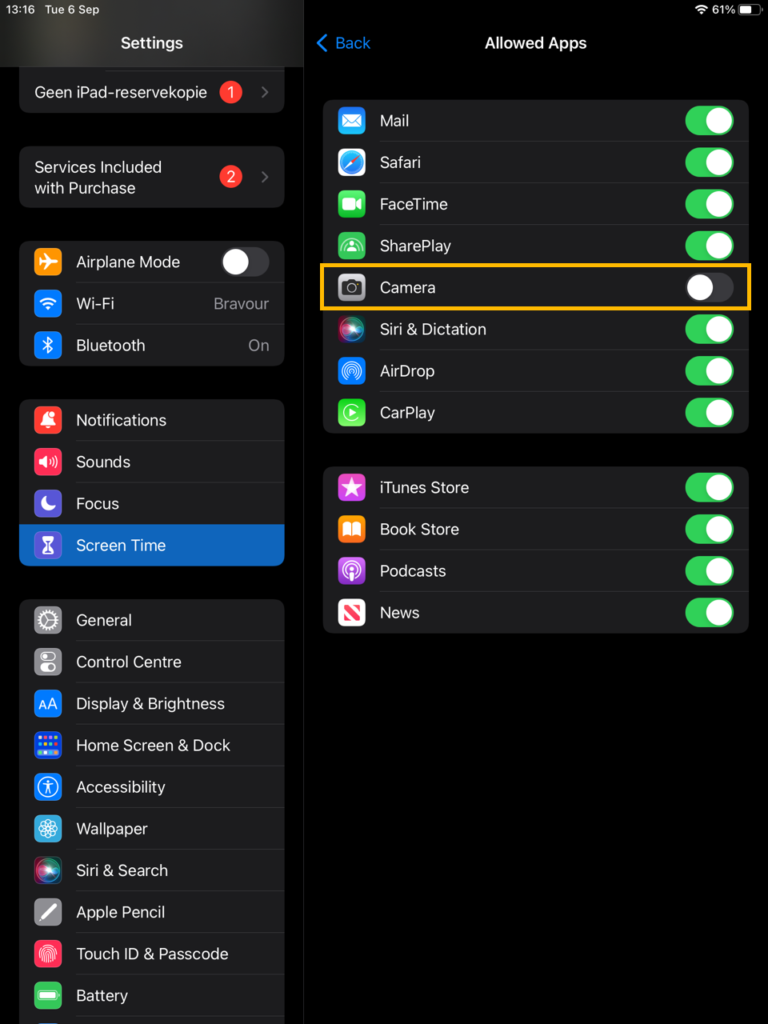
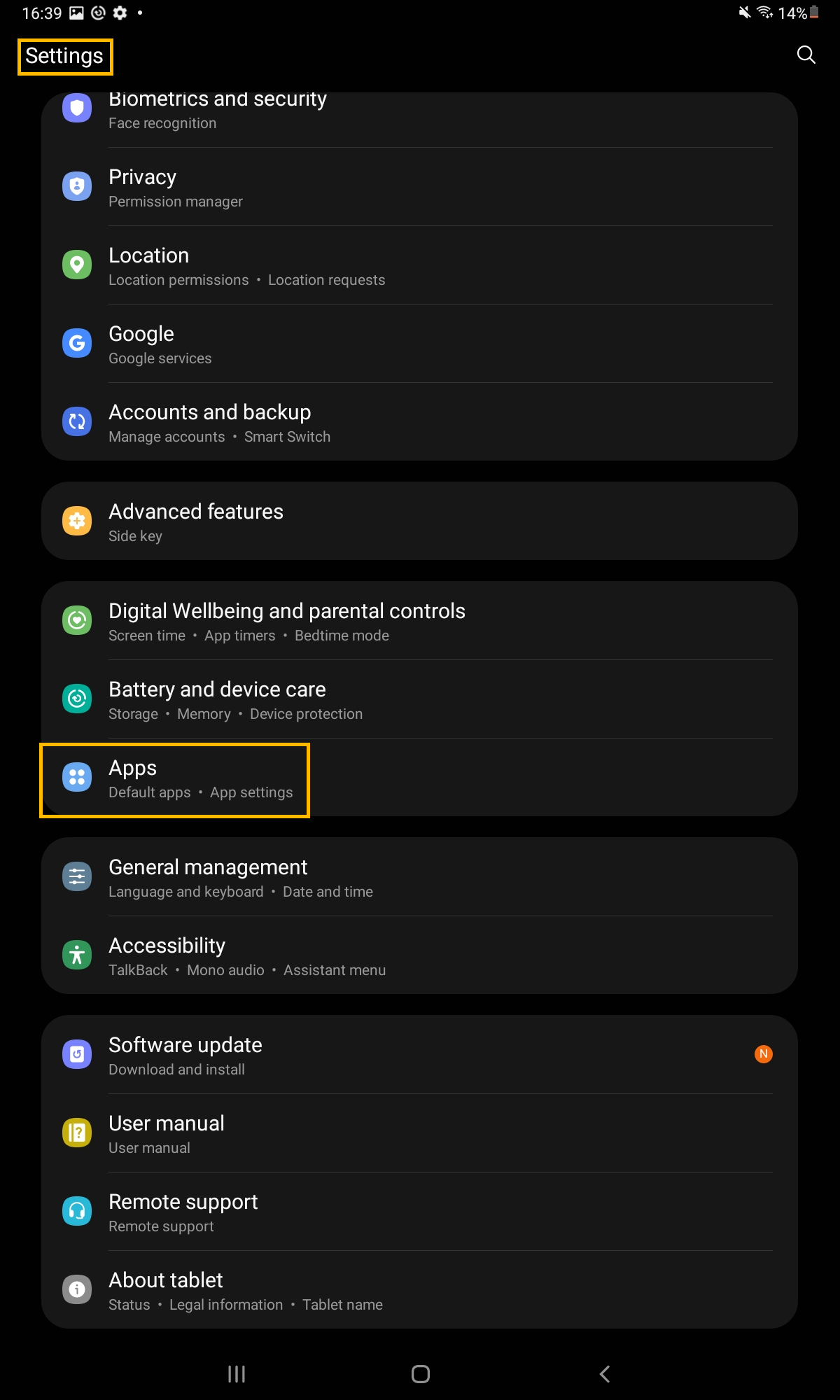
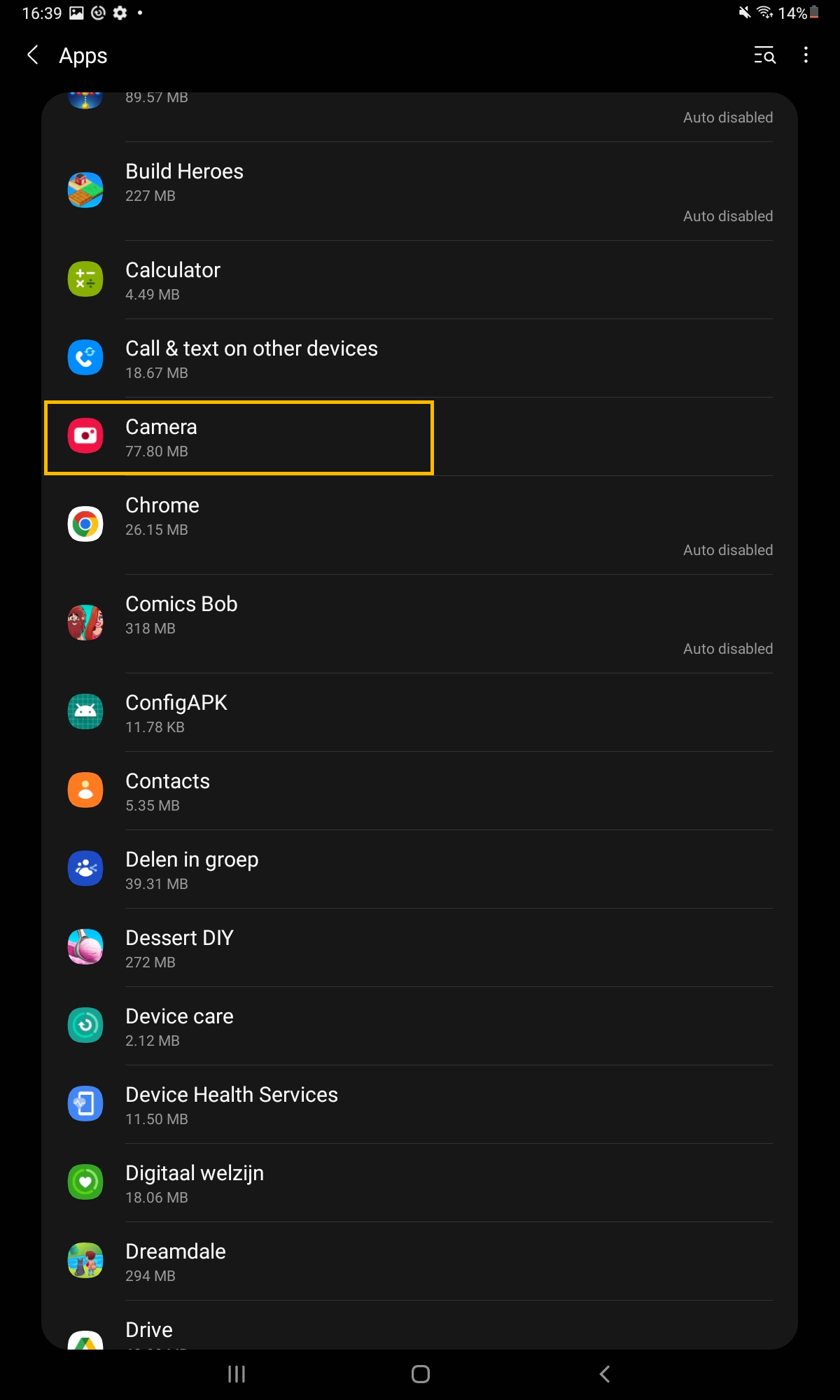
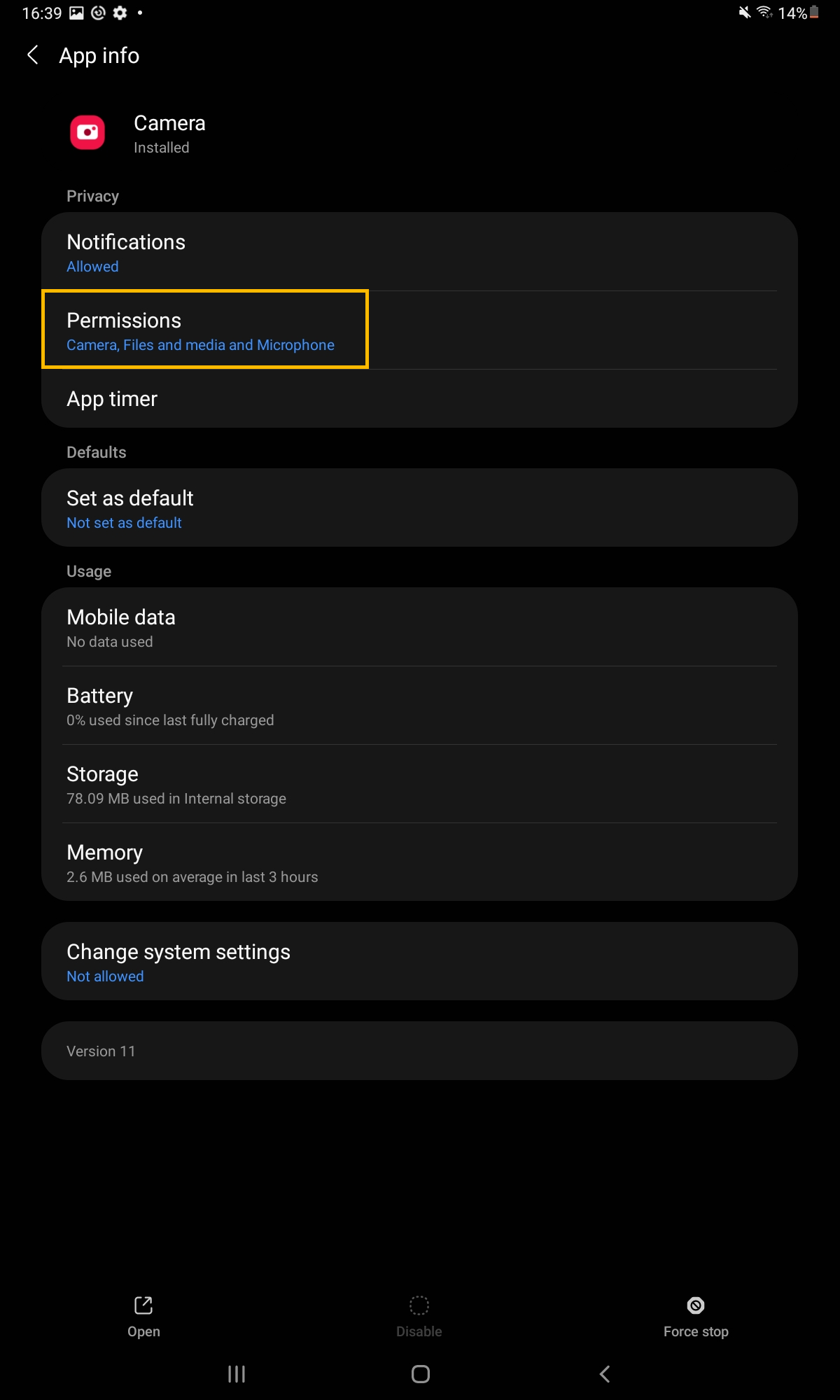
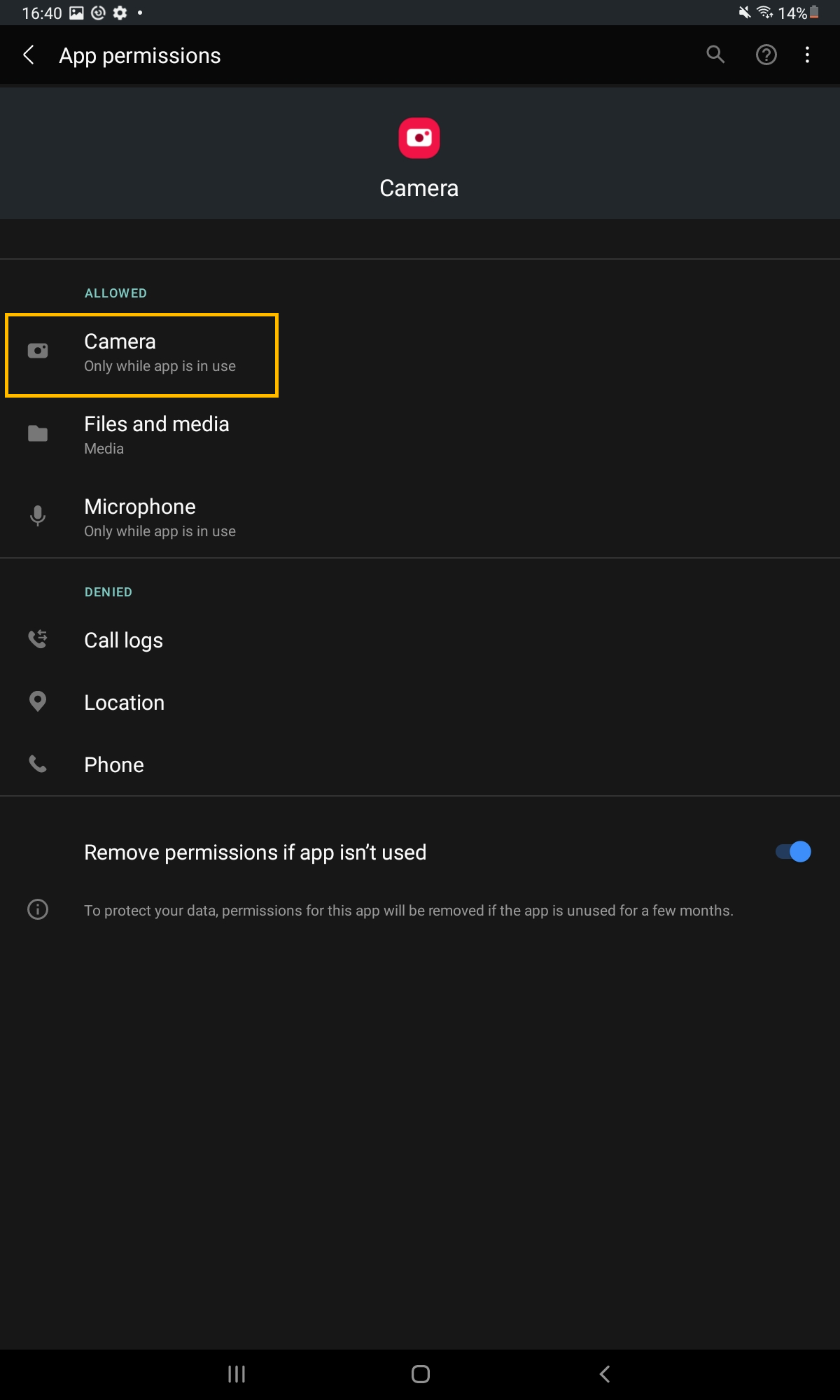
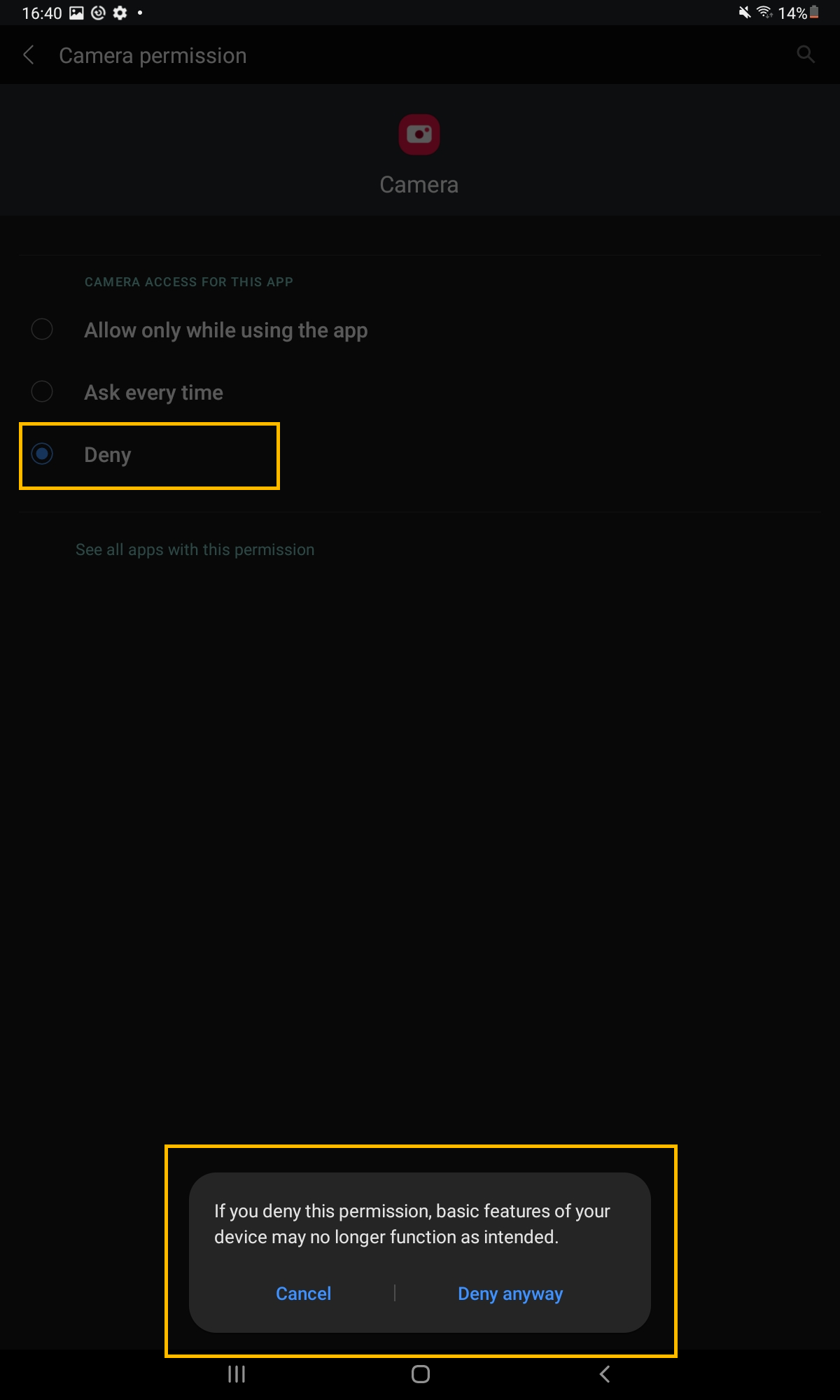
To prevent a user from using the camera, you can disable it software-wise.
How you do this depends on your tablet.
Disabling camera functionality of an iPad (iOS)
Disable camera functionality of an Android tablet
Activate kiosk mode
You can also disable the home button functionality to prevent the user from leaving the application you wish to display.
This way, the user always remains in the specified applications with the functionalities associated with them.
This is also known as kiosk mode.
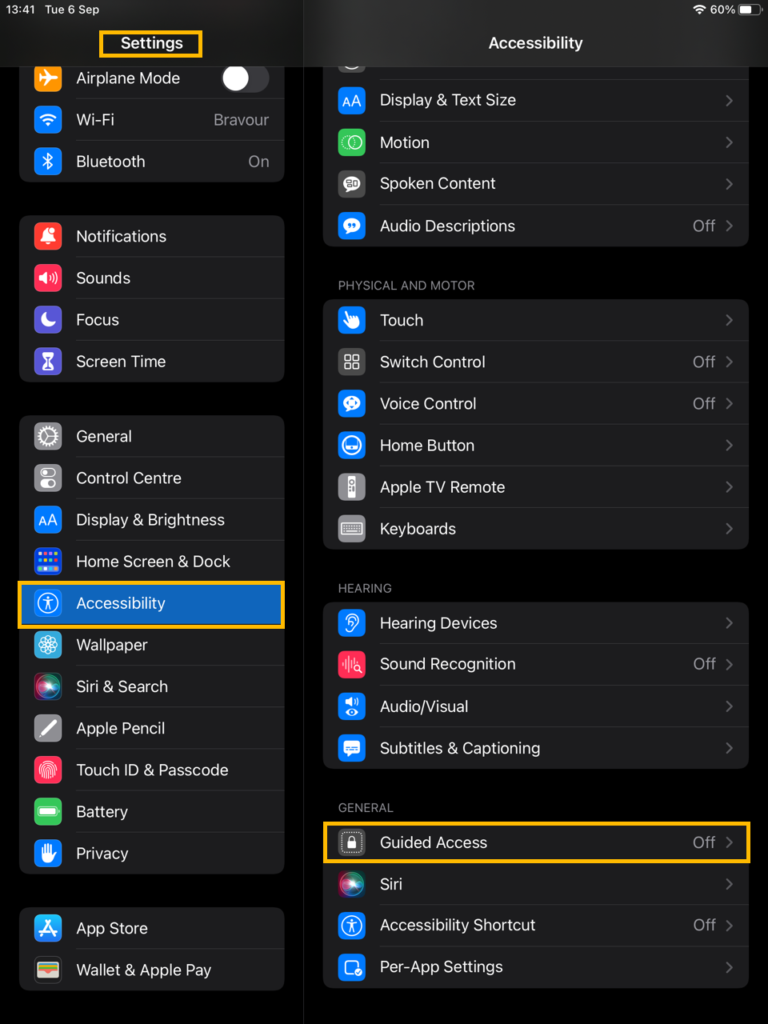
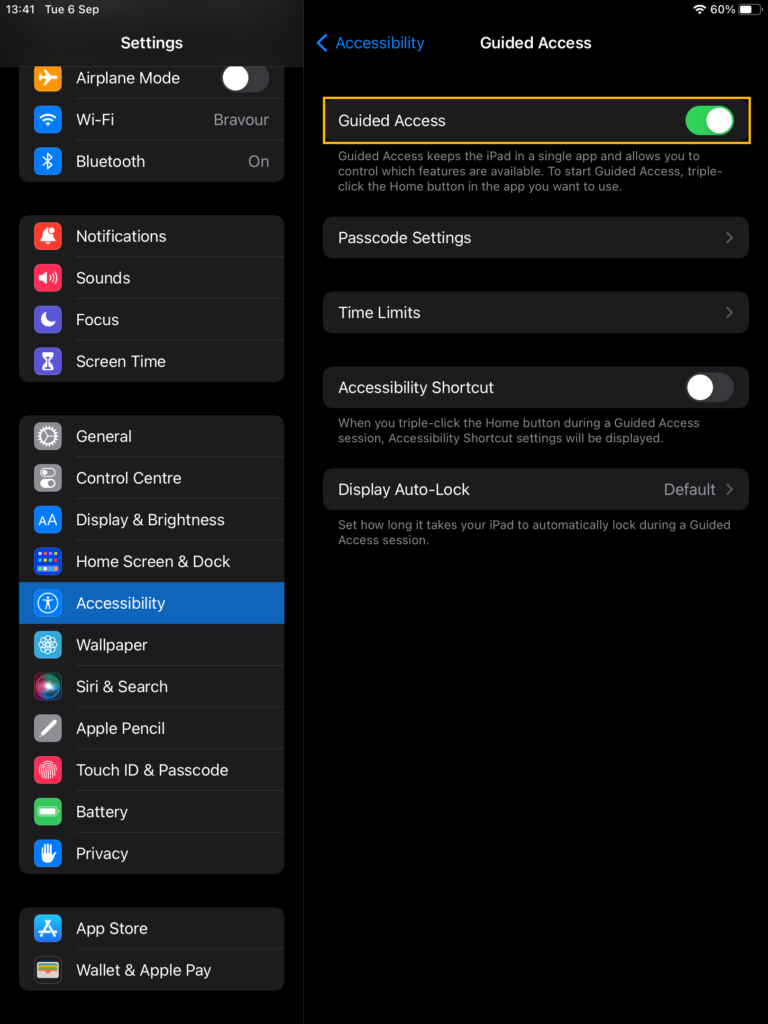
Activate kiosk mode on an iPad (iOS)
Activate kiosk mode on an Android tablet
Android tablets do not have native kiosk mode functionality, but there are several kiosk software apps available.
Depending on the desired functionality, choose the applications that best suit your needs here.